English
Wren
A little bird told me.

Someone sends you a reel. Five places you have to eat at in Rome, a rooftop bar in Lisbon, a bookshop down an alley in Tokyo, a swimming spot someone swears by. You watch it, you mean to remember, and it is gone by Thursday.
Wren catches them — off a screenshot, out of a list another app exported, or from a guide you already keep. It reads the place names, works out which places they actually are, and drops the lot into a guide in Apple Maps, where you will be standing when you need them.
Restaurants and bars, certainly. Also viewpoints, markets, hotels, galleries, shops, trailheads, beaches and the odd petrol station someone insists does the best coffee for fifty miles. Anywhere with a name and a location.
Three ways in
Places do not only arrive as screenshots, so there are three ways to hand them over. All of them end in the same place: a guide in Apple Maps.
- 01 From screenshots One tap per place, from a reel, a post, a message from a friend, or a photographed page of a guidebook. Text recognition runs on your phone, so the screenshots stay there. Wren also reads the caption to work out which city you are looking at, and asks you to confirm it.
-
02
From a file
A list exported from another app —
CSV,KML,KMZ,GPX,GeoJSON, or a Google Takeout export of your saved places. Where the file carries coordinates, each place is looked up near its own, so a list spanning three cities resolves correctly rather than being dragged toward one of them. - 03 From a guide you already have Share a guide out of Apple Maps, paste the link into Wren, and it reads the places already in it. New places sit alongside them, and one guide is made holding both.
-
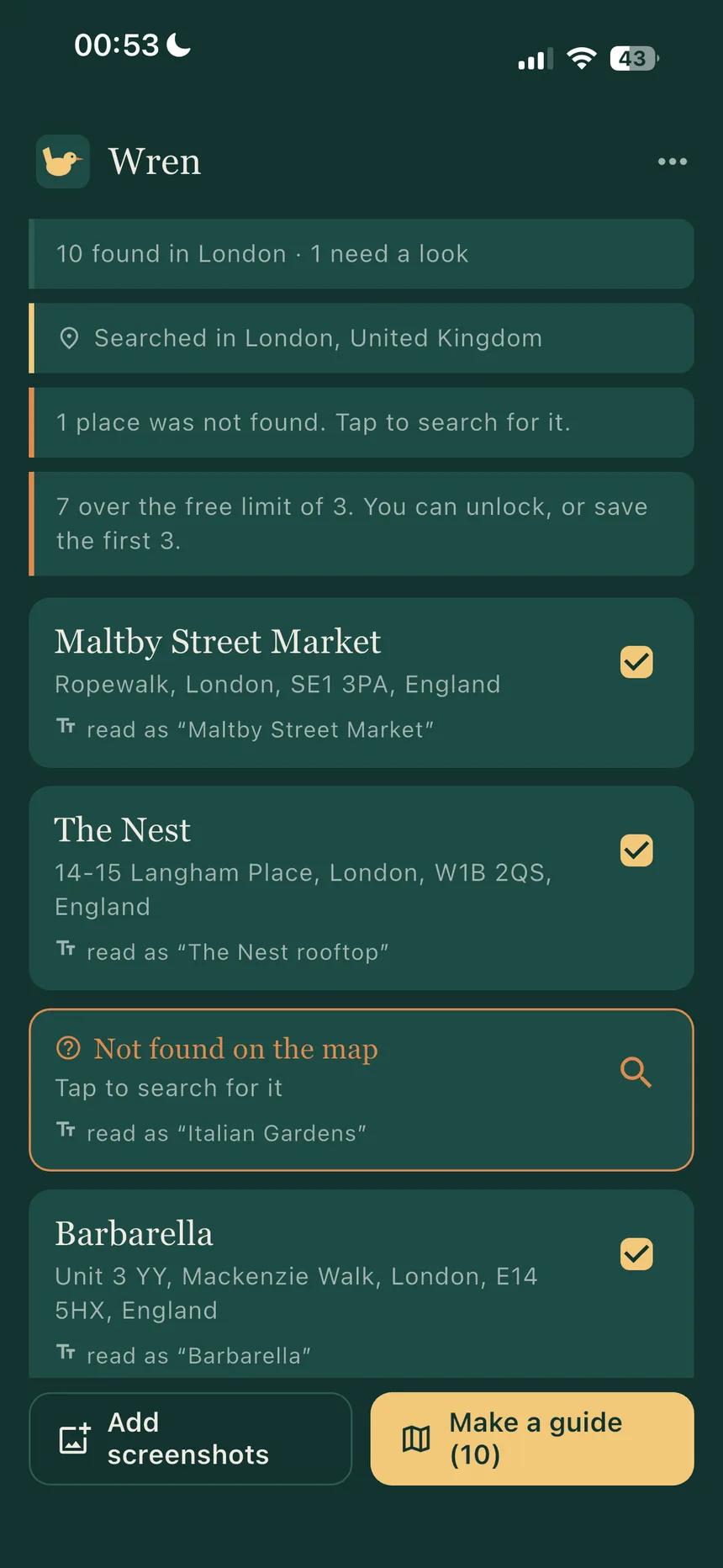 Everything it read, with what it matched each line to, before anything is saved.
-
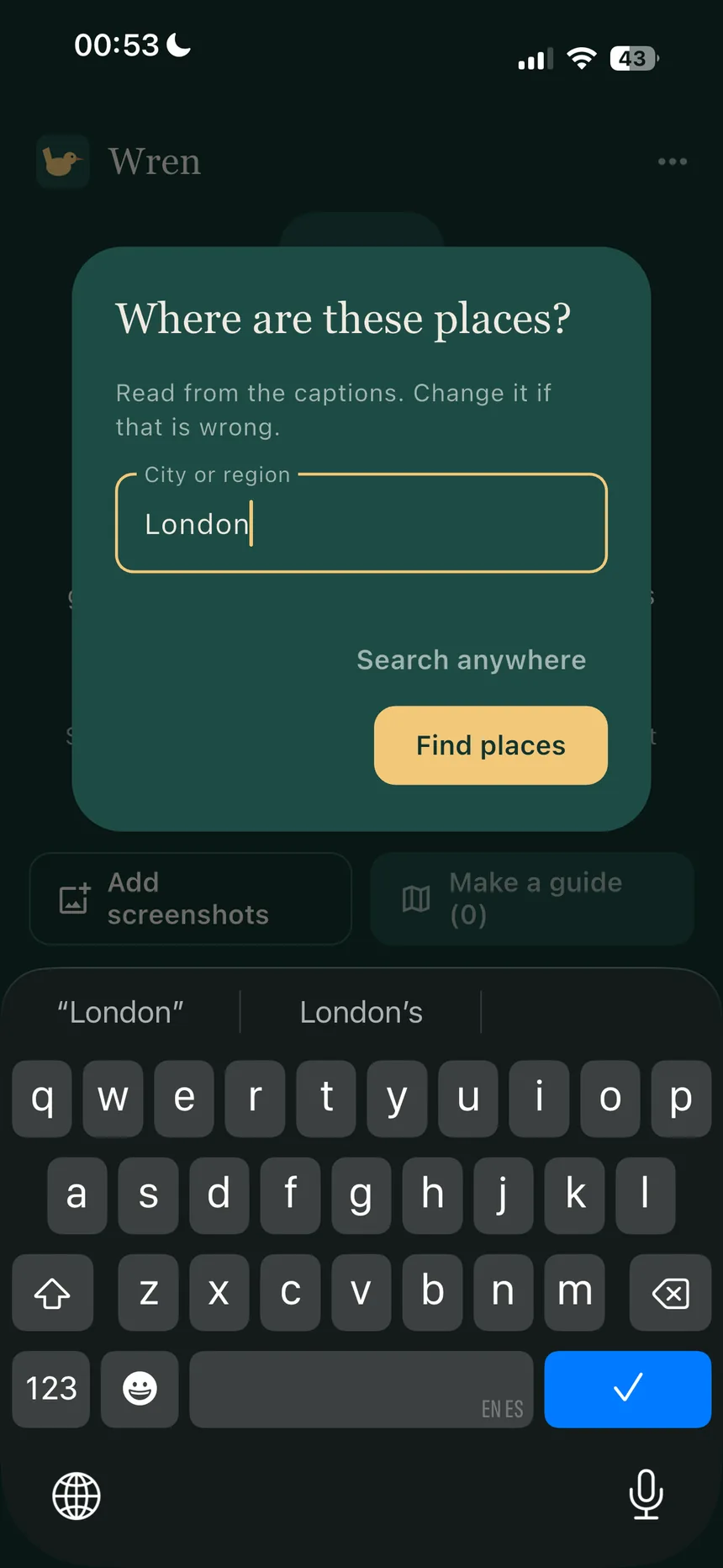 It works out the city from the caption and asks, so a name finds the right place.
-
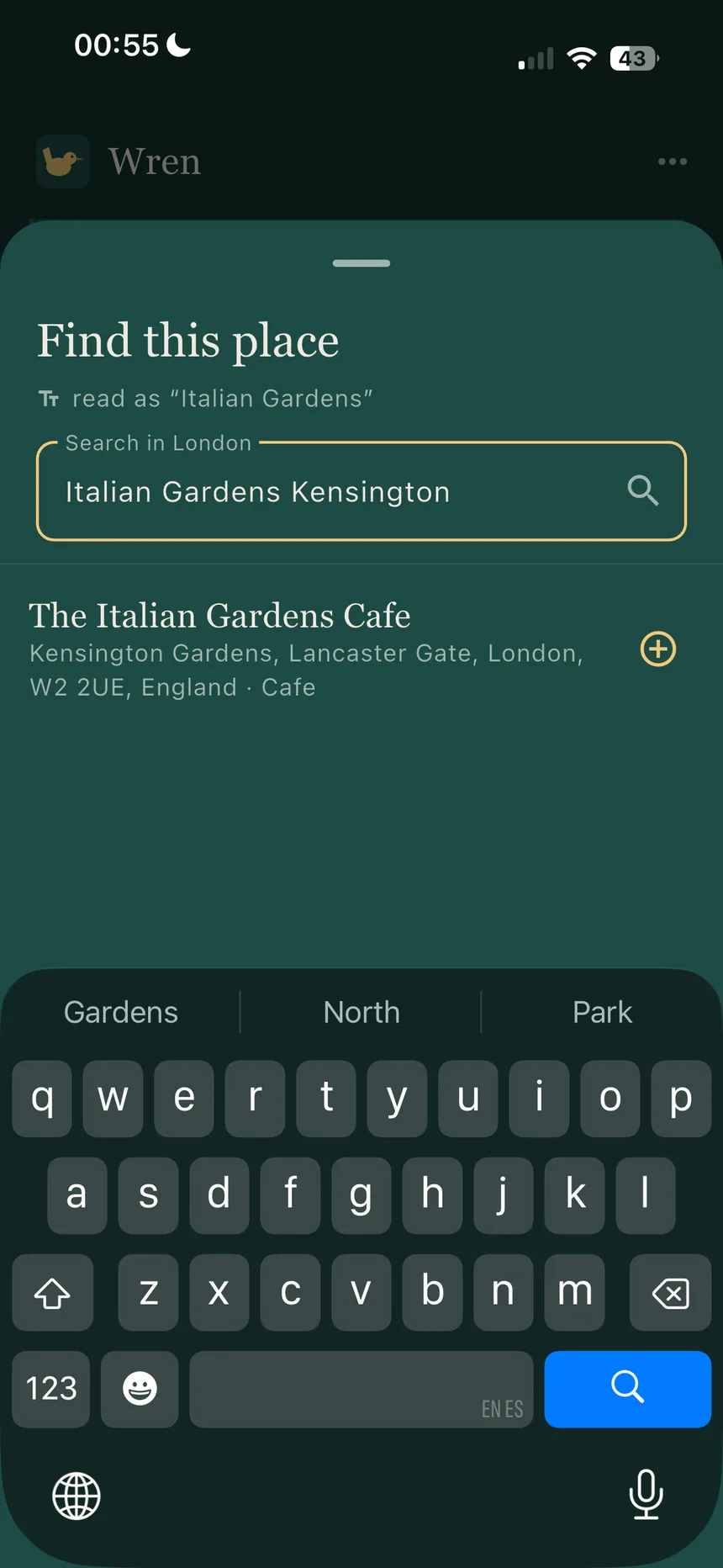 A wrong match is obvious rather than confident, and can be searched again by hand.
-
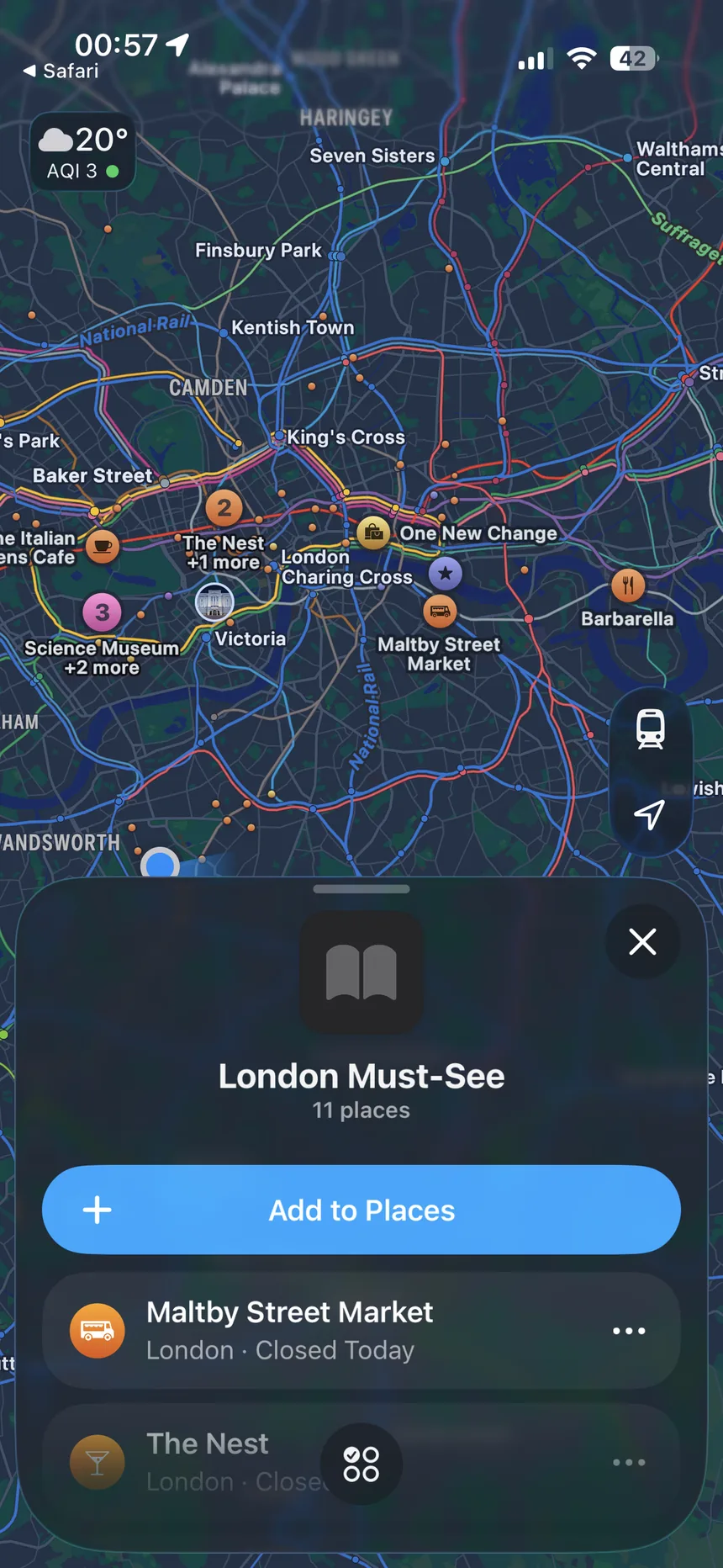 What comes out: an actual guide, in the Maps app you already use.
Then you check it
Every place shows what was read beside what was matched, so a wrong match is obvious rather than confident. Anything not found — or found wrongly — can be searched again by hand. Nothing is written to Apple Maps until you say so.
What comes out is not a copy of your places in another app. It is an actual guide, in the Maps you already use, on every device signed in to your Apple Account.
Adding to a guide you already keep
This is the part Apple gives no route to, and it is worth being straight about how it works.
Apple Maps offers no way to add places to a guide that already exists from outside the app. So Wren reads the places out of the guide you share with it, puts the new ones alongside them, and makes one new guide holding everything — which you keep instead of the old one. Wren keeps the places afterwards, so if you delete the wrong guide you can make it again in a tap.
A single place is the exception. Send one on its own and Maps itself offers to add it to a guide you already have, no new guide required.
About a hundred and fifty places fit in one guide. Beyond that Wren splits them into numbered guides and tells you before it does, rather than quietly dropping the ones that would not fit.
No account, no sign-in
Wren has no account and reads nothing from yours. Your screenshots are read on your device and are never uploaded. Wren signs in to Instagram, TikTok and YouTube not at all, and never sees anything you have not handed it.
Two things leave your phone, both of them small and both of them necessary. The name of a place, sent to Apple Maps so it can be found — exactly as the Maps app does. And, if you paste a shared guide link, that link is sent to Apple to be expanded, because Apple's short links carry nothing that can be read without asking.
Two things reach a server Wren runs, and only when you ask for them. A complimentary access code, with a random identifier for the device so a code cannot be used twice — not linked to you, never used for tracking. And the link to a reel or post you share: that post is fetched, read and discarded, and nothing about it is kept — not the video, not the words, not the place names. The privacy policy sets all of this out in full.
This website is a separate matter, and worth saying plainly rather than burying: it uses Google Analytics to count visits, and only if you accept the notice on your first visit. Decline and it sets no cookies and sends Google nothing. The app itself contains no analytics that identify you: it only counts, anonymously, which steps people reach.
What it costs
Guides of up to three places are free, for good, and so is reading a screenshot. Two one-time purchases exist. One removes the three-place cap and lets you add to a guide you already have. The other reads places out of a reel or post you share, with a fair-use allowance of 250 posts a month. Buying both together costs less than buying them apart. No subscription, nothing that renews, and everything restores on your other devices at no further cost.
Wren is on the App Store. Free to download, and it needs iOS 18 or later. The Apps page has the link, and where Android has got to.
The awkward part — getting places into Apple Maps in bulk, which Apple provides no documented way to do — is solved and verified on a device, up to about a hundred and fifty places in a single guide. The app itself is translated into 47 languages.
Wren needs iOS 18 or later. That is not a preference: the identifier Apple Maps requires for each place only exists from iOS 18, and without it the app could read your screenshots perfectly and then find nothing at all.
An Android version is being built, for the Play Store. It is not released yet, and this page will say so when it is.
Android has no equivalent of an Apple Maps guide, so it works the way Android works: Wren reads the same screenshots, files and links, checks the places with you, and then hands the finished list to the map app you actually use. Organic Maps, OsmAnd and Locus Map take it straight in — all three verified on a device. Gaia GPS and Mapy.com take it too, once you are signed in to them, and anything else that reads a standard place file is one tap away through the Android share sheet.
Google Maps is the awkward one, and worth being straight about: Google provides no way for an app to write a saved list. So Wren writes the list out and opens Google My Maps for you to import it, which is a few taps rather than one, and the result appears in Google Maps under You → Maps.